
Short answer: the cleanest way to take partial profit in cTrader is a position with several take-profit levels. Since 28 May 2026 every cTrader app supports up to five take-profit levels per position, and each level closes the quantity you set; the last level closes whatever is left. On desktop you add them in the Modify position window (double-click the position in Trade Watch, set the take-profit levels, click Protect). To cut size right now, cTrader Mobile has a Quantity/Volume field in the position’s Modify tab, and a cBot can call ClosePosition(position, volume).
Below are the steps for each route, what Spotware’s documentation says and does not say, a worked example with numbers, and how cTrader books a partial close in your history. Everything was checked against help.ctrader.com and Spotware’s announcement in October 2026. cTrader updates its apps often, so labels can shift.
What changed in May 2026
On 28 May 2026 Spotware announced advanced take profit on all cTrader apps, describing it as server-side scaling out. The points that matter in practice:
- Up to five take-profit levels per position.
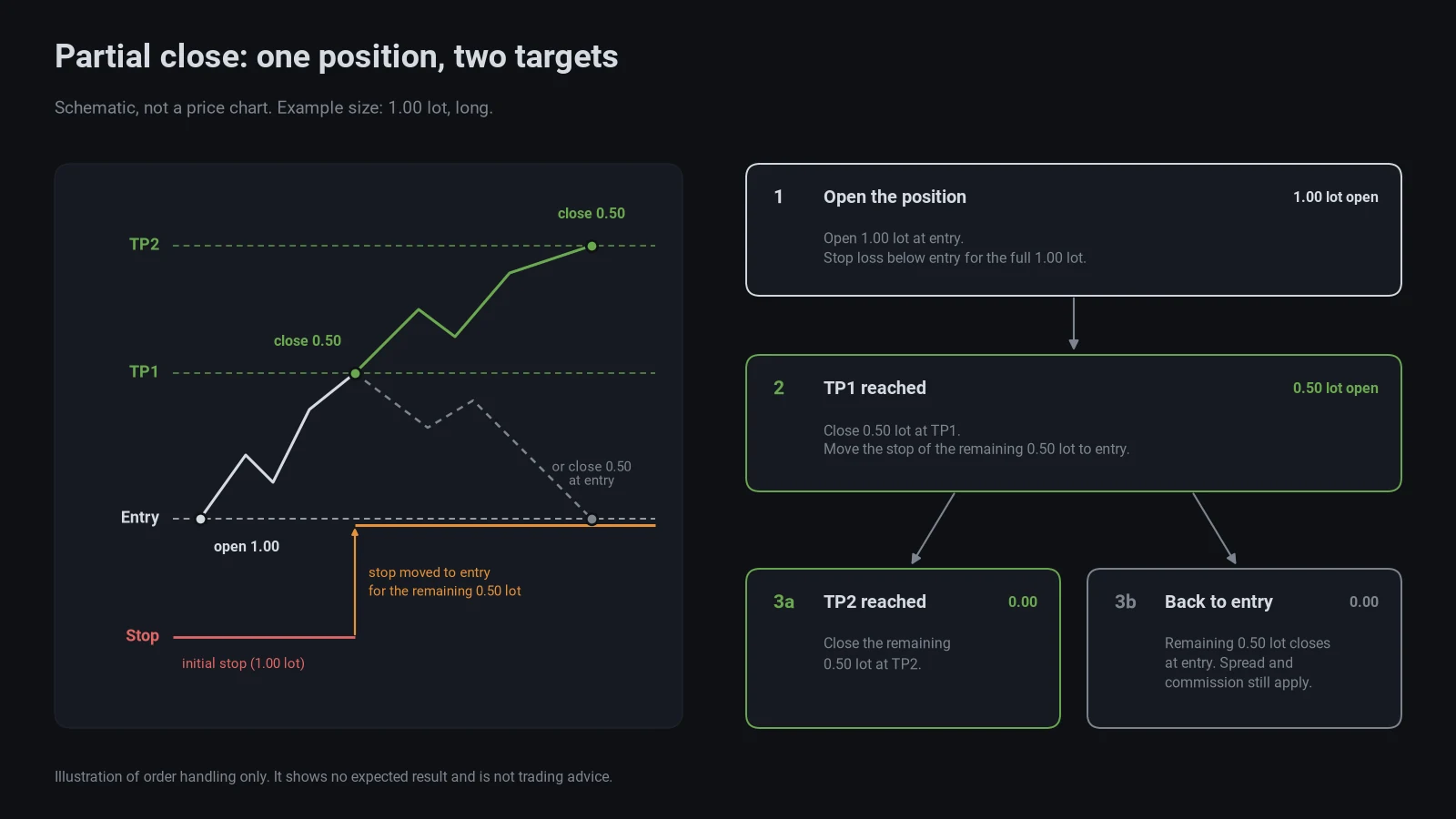
- At each level you choose how much volume to close. When price reaches the level, cTrader closes that portion and keeps the rest open.
- Levels can be added, edited or removed when you place an order, when you modify a pending order and on an open position, and from the chart.
- The protections run on cTrader’s servers, so they stay active after you close the app.
- A break-even stop loss arrived with the same release: once price has moved far enough in your favour, the stop moves to the entry price automatically.
Before this, scaling out in cTrader meant closing pieces by hand or running a cBot or plugin. Those still work, and there are cases where you want them.
Method 1: multiple take-profit levels (Windows, Mac, Web)
To add levels to a position that is already open:
- Open the Positions tab in Trade Watch.
- Open the Modify position window: double-click the position, click its cog icon (shield-with-cog in cTrader Web), or right-click it and choose Modify position. On Mac you can also double-click the position badge on the chart.
- Under Take profit, set the first level. Values can be entered in pips, price, percentage of balance or profit amount.
- Enable additional take-profit levels (in cTrader Web the button is Add TP) and use the Quantity field at each level to set how much of the position that level closes.
- Add up to five levels. The last level always uses a fixed quantity that closes the rest of the position, so you cannot leave a remainder without a target by accident.
- Click Protect to apply.
For a new trade, the same fields sit in the new order window under Take profit 1. On the chart, dragging the TP control from a position or pending order creates one or several take profits.
The Position info window then lists each active level as Current TP with its distance in pips, and the order events show the applied price and quantity per level, TP 1 to TP 5.
On cTrader Mobile
- Tap the position in the Positions tab and switch to the Protect tab.
- Enable Take profit 1 and set its distance in pips.
- Turn on Take profit 2, Take profit 3 and so on, up to five levels. Each level has a Quantity / Volume field, a Pips field, and a read-only Price.
- By default each new level takes half of the one before it. Change Quantity / Volume to set your own split; the last level is fixed at the remainder.
- Tap Modify protection to save.
Method 2: reduce the position by hand
Sometimes you do not want a target. You want half off, now.
cTrader Mobile
Tap the position. The menu opens on the Modify tab, which has a Quantity / Volume field. Lower it and tap Modify. The button stays disabled until you change the size or direction, with the hint “Leave size intact” underneath. The part you closed shows up as realised P&L in the Details tab.
cTrader Windows, Mac and Web
Here we have to be precise. Spotware’s current help for Windows and Web lists only protection settings in the Modify position window: stop loss, trailing stop, break-even and take profit. It does not mention a volume field. On the official cTrader community forum, the reply to a partial-close question in March 2020 was: “just go to the Modify Position form and change the volume.” If your version shows a quantity or volume field in that window, that is the route. If it does not, use a take-profit level, the mobile app or a cBot.
Netting vs hedging accounts
Know which account type you have before you try the “just sell half” approach. On a netting account all deals on a symbol affect one net position, so a sell order against a long reduces it. On a hedging account the same sell order opens a second, opposite position. You then hold a long and a short at the same time, each with its own costs, and nothing was closed.
Method 3: close part of a position from a cBot
The cTrader Algo API has two calls for this. ClosePosition(position, volume) closes the given volume. ModifyPosition(position, volume) sets the position’s new volume in units. Round the amount to a size the symbol accepts:
ClosePosition(pos, Symbol.NormalizeVolumeInUnits(pos.VolumeInUnits / 2, RoundingMode.Down));
Protections can also be set from code: ModifyPosition has overloads that take a set of take-profit levels and a break-even setting. If you buy a cBot that scales out, test how it handles each partial exit before running it live; our guide on backtesting a cBot before you buy covers the checks.
Break-even after the first target
Break-even has two inputs. Trigger is how far price must move in your favour; Offset is how far beyond the entry the stop is then placed. Spotware’s own example: entry 1.1000, trigger 30 pips, offset 5 pips. At 1.1030 the stop moves to 1.1005. With an offset of zero, spread, commission or slippage can still leave a small loss. Break-even works on its own, without a regular stop loss being set.
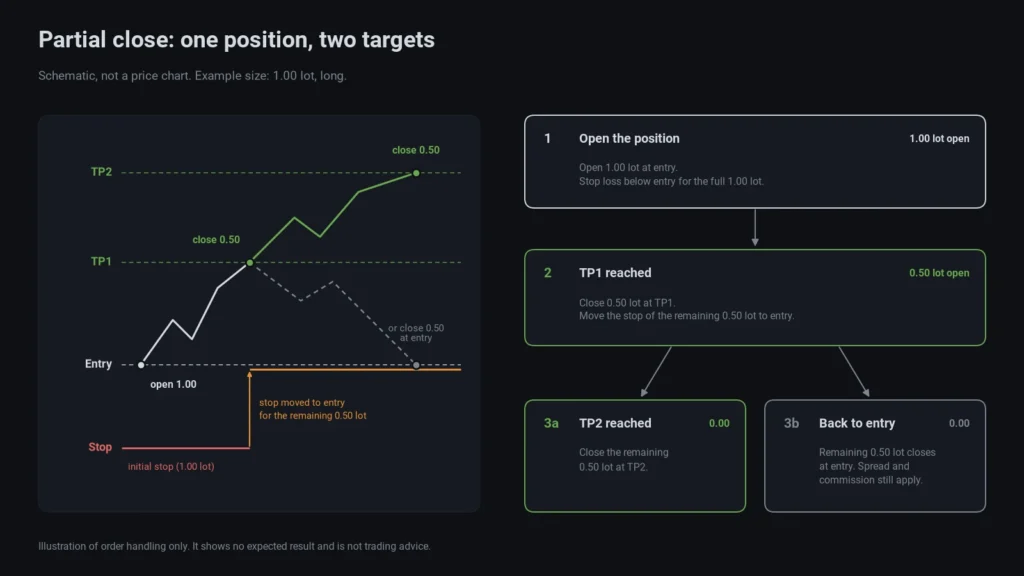
One way to combine the two is to put the break-even trigger at the same distance as the first take-profit level. Once the first part is closed, the stop on the rest sits at entry, so the remainder cannot turn into a full-size loss, gaps and slippage aside.
Worked example
Illustration only, with round numbers, not a recommendation. EURUSD, USD account, where 1 lot is 100,000 units (check Lot size in your broker’s symbol info). One pip is 0.0001, so one pip on 1.00 lot is worth 10 USD.
- Buy 1.00 lot at 1.1000, stop loss at 1.0970 (30 pips). Risk at the stop: 1.00 × 30 × 10 = 300 USD.
- Take profit 1: 0.50 lot at 1.1030 (+30 pips).
- Take profit 2, the last level: the remaining 0.50 lot at 1.1060 (+60 pips).
- Break-even: trigger 30 pips, offset 0.
| What happens | Calculation | Result before costs |
|---|---|---|
| Stop hit before TP1 | 1.00 × −30 × 10 | −300 USD |
| TP1, then back to entry | 0.50 × 30 × 10 + 0.50 × 0 × 10 | +150 USD |
| TP1 and TP2 | 0.50 × 30 × 10 + 0.50 × 60 × 10 | +450 USD |
Spread, commission, swaps and slippage come on top. cTrader’s help notes that triggered stop losses and take profits execute at market, so the fill can differ from the level.
Now a manual cut. Same trade, price at 1.1020 (+20 pips), and you reduce from 1.00 to 0.60 lot. Realised: 0.40 × 20 × 10 = 80 USD. The remaining 0.60 lot still has its stop at 1.0970, so the open risk from entry drops from 300 to 0.60 × 30 × 10 = 180 USD. If the stop is hit afterwards, the trade ends at 80 − 180 = −100 USD instead of −300 USD.
How cTrader books a partial close
Closing all or part of a position executes an opposing deal at the best available price, and the unrealised profit or loss of the closed part becomes realised. In the deal info, Position impact shows “Closing” for a deal that fully or partially closed a position, and Offset method reads first-in, first-out. The closing deal’s entry price is the volume-weighted average of the opening deals it closed.
FIFO matters when you added to a position. Illustration: you buy 0.50 lot at 1.1000, add 0.50 lot at 1.1020, and the position shows an average entry of 1.1010. You then close 0.50 lot at 1.1040. First-in, first-out means the oldest deal is closed first, so the realised part is 0.50 × 40 × 10 = 200 USD, and the open half carries +20 pips from 1.1020, 100 USD unrealised. Under average-price accounting the split would be 150 and 150. The total is 300 USD either way; only the split between realised and unrealised differs, which matters for daily P&L limits and reports.
The Position info window shows Gross realised and Net realised for what partial closes have already secured, and the position events list every deal in order.
Before you rely on it
- Minimum size and step. Every partial close and every take-profit quantity must respect the symbol’s minimum and step volume, shown in symbol info. A position that is already at the minimum size cannot be split.
- Prop firm rules. If you trade a challenge, check how the firm counts realised and unrealised P&L and whether it has rules on position management. Our prop firm cBot checklist lists what to ask.
- Test on demo. Set up a two-level take profit on a demo account and watch both executions in History before you do it with real size.
Scaling out changes how a trade is managed, not whether it was a good trade: leveraged trading can lose more than you plan for, so size every position as if the first target will not be reached.
Looking for tools that work alongside cTrader’s own order handling? See the cTrader indicators page or browse the marketplace.
FAQ
Can I close half a position in cTrader?
Yes. On cTrader Mobile, lower Quantity / Volume in the position’s Modify tab and tap Modify. On any app, you can set a take-profit level with a quantity of half the position. A cBot can call ClosePosition(position, volume).
How many take-profit levels can one position have?
Up to five. Each level closes the quantity you set, and the last level always closes the remainder.
Do multiple take profits work when cTrader is closed?
Yes. Spotware states that protections are server-side and remain active after your session ends.
Does opening an opposite trade close part of my position?
Only on a netting account. On a hedging account it opens a separate opposite position, and you end up holding both.
Can I combine break-even with multiple take profits?
Yes. Break-even is a separate protection with its own trigger and offset, set in the same order or Modify position window as the take-profit levels.