
Everything buyers need to purchase, activate, and use tools on AlgoScriptX — cTrader, MetaTrader 5/4, and TradingView — from checkout to license activation, demos, refunds, and troubleshooting.
How to buy
- Browse the marketplace — Filter by platform and product type. Guests can view all listings; sign in to purchase or claim a demo.
- Add to cart — Review price, activations, and platform on the product page.
- Checkout — Enter billing details and pay by card via Stripe. Prices are final (no VAT under § 19 UStG).
- Instant delivery — Your license key, download, and invoice appear immediately in your account and by email.
What you receive after purchase
- License key — Copy it from My licenses.
- Product download — Latest live version for your platform.
- PDF invoice — Available on your order detail page.
- Confirmation email — Includes your key and download link.
- Lifetime updates — New versions appear in your account when published.
How to activate your license
cTrader and MetaTrader products use online license verification tied to your trading account number. TradingView products use invite-only script access after you submit your username. One activation slot = one account or username.
Important
Use the exact account number or TradingView username you will run the tool on. Pick your platform tab below for where to find it. Activate that value — not a different account.
cTrader Indicator package Buy the product — your license key appears after purchase. Buy the product — your license key appears in My licenses.- Get your account details — trading account number (cTrader / MetaTrader) or TradingView username, depending on product platform.
- Activate on AlgoScriptX — open your license in My licenses, enter the value, and confirm.
Platform-specific steps (4–6)
- Install the file — download from My licenses, open in cTrader Automate (double-click or Import). Zip? Use inner
.algofromdeliverable/. 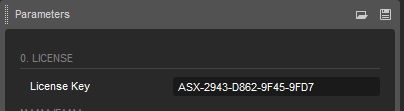
License Key parameter Enter your license key in cTrader Parameters. Enter your license key — in cTrader open Parameters and type your key into the License Key field. Copy the key from this page (shown above).- Where to find your license key — it is on this license page (and in My licenses). Copy it, paste it under Parameters → License Key, then run the chart on the same cTrader account you activated.
- Install the file — download
.ex5/.ex4(or.mq5source). Copy intoMQL5/ExpertsorMQL5/Indicatorsvia File → Open Data Folder, then refresh Navigator. License Key parameter Enter your license key in cTrader Parameters. Enter your license key — open Parameters and type your key into the License Key field. Copy the key from this page (shown above). Whitelisthttps://id.algoscriptx.comunder Tools → Options → Expert Advisors → Allow WebRequest for listed URL.- Same account on chart — the chart login must match the number you activated.
- Seller adds you — within ~24 hours the seller adds your username to the invite-only Pine script on TradingView.
License Key parameter Enter your license key in cTrader Parameters. Open the script — TradingView → Invite-only scripts → apply to chart.- Pine licensing note — Pine cannot verify licenses over the network. Access is invite-only on TradingView (industry standard).
Finding your cTrader account number
Your account number is the numeric ID cTrader uses for the account currently selected. Look at the top-right of the cTrader window — the account label usually shows account type and number (e.g. Demo 0912345 or Live 1234567). Enter your cTrader account number (e.g. 0912345) on the activation form — no broker name needed. You can also open Settings → Account info to confirm. Activate the account you will actually trade or test on — not a different demo or live account.
Troubleshooting
- “Account not activated” — you are on a different cTrader account than the one you activated. Switch accounts (top-right) or deactivate the slot in My licenses and re-activate the account you are using.
- “License not found” — typo in the key. Copy from My licenses and paste into cTrader.
- “License expired” / “revoked” — trial ended or refund processed. Contact support.
- Indicator shows nothing / won’t verify — grant Network access (FullAccess) when cTrader asks.
Activations and moving accounts
Each product shows its activation limit on the product page (for example, two cTrader accounts). You can deactivate an old account in My licenses to free a slot. If you change brokers or accounts, deactivate the old ID first, then activate the new one.
Free 7-day demo
Selected products offer a free 7-day demo. Sign in, click Get free 7-day demo on the product page, and receive a trial license instantly. One demo per buyer per product, ever. When the trial expires, verification stops and you can upgrade to the full license on the same product page.
Refunds and withdrawal
Digital products are delivered immediately. At checkout you confirm that you waive the statutory withdrawal right for instant digital delivery, as required by EU law.
Within 14 days of purchase you may submit a goodwill refund request from your order page with a short reason. Our team reviews order and usage evidence. Approved refunds are returned to your original card via Stripe in about 5–10 business days. See the full Refund & Withdrawal policy.
Payment security
Payments are processed by Stripe. AlgoScriptX does not store your full card number. Supported methods include major credit and debit cards. Prices are final; no VAT is charged (§ 19 UStG).
Your account
- Password reset — Reset password
- Two-factor authentication — Optional in account settings
- Email change — Profile settings with verification
- GDPR export/delete — Account → Settings
More troubleshooting
See the activation section for the most common setup issues. Other errors: license_not_found — check the key; license_expired — trial ended or revoked; download blocked — order must be completed. Contact support if needed.
Read our FAQ, terms of service, and refund policy.